Если вы готовите документы по теплотехническому контролю морских судов, вы знаете эту боль: формулы ГОСТ нужно пересчитывать вручную, шаблоны протоколов Е3 и D2 заполнять по памяти, а любая опечатка в цифрах — это риск переделки и задержки выпуска судна.
Я сделал программу, которая закрывает этот вопрос. Она автоматически подставляет данные из анкеты и паспорта двигателя в формулы по ГОСТ Р 51249-99 и ГОСТ 31967-2012 и формирует готовые документы по формам Е3 и D2 — вам остаётся только поставить печать.
Кому это нужно:
- Инженерам-теплотехникам и механикам, которые готовят судовую документацию.
- Судоремонтным и сервисным компаниям, которые проводят тестирование двигателей.
- Специалистам, работающим с классификационными обществами и проверками.
Что делает программа (и почему это экономит ваше время):
1. Анкета-заявка на тестирование двигателя.
Заполняете один раз — данные автоматически подтягиваются из смежных разделов. Не нужно вбивать одно и то же в пяти местах.
2. Справочник двигателей.
Если нужного двигателя нет в списке — создаёте его по паспорту за пару минут. Дальше он остаётся в базе.
3. ГСМ и техсредства.
Учёт материалов и поверенных средств измерений — всё в одном месте, с привязкой к тестированию.
4. Документ тестирования с формулами ГОСТ.
Вам нужно заполнить только поля со звёздочкой (*). Все расчёты по ГОСТ Р 51249-99 и ГОСТ 31967-2012 программа делает сама.
5. Готовые шаблоны форм Е3 и D2.
Нажимаете «Заполнить шаблон» — получаете официальный документ, который остаётся только заверить печатью и передать клиенту.
Результат, который вы получаете:
- Документы по формам Е3 и D2, соответствующие ГОСТ.
- Протокол тестирования на основе утверждённого шаблона.
- Экономию времени: вместо ручного оформления — несколько минут на документ.
- Снижение риска ошибок в формулах и данных.
Возможности под вас:
Программу можно доработать под ваши процессы — добавить нужные поля, формы, отчёты или интегрировать с вашими данными. Обсуждается индивидуально.
Если вам нужно такое ПО — напишите мне. Я покажу, как оно работает, и передам вам программу. Также могу дописать её под ваши задачи.
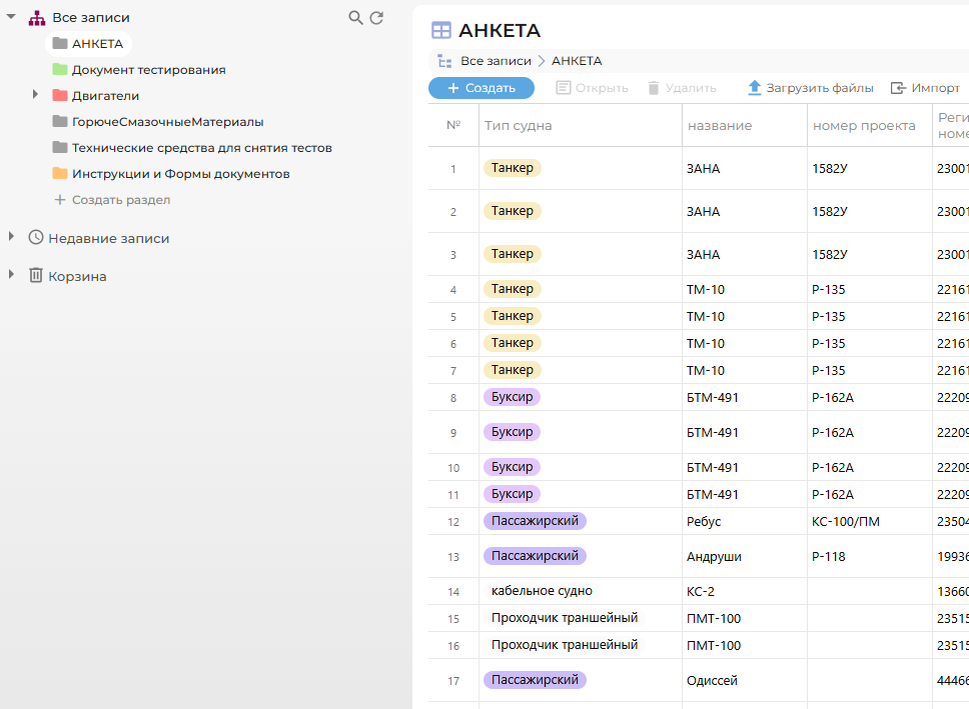
Анкета